
eSIM Not Working Abroad? 12 Common Problems and How to Fix Them
Your travel eSIM is installed, but there is no mobile internet? Do not delete the eSIM. In many cases the problem is caused by a simple phone setting rather than the eSIM itself. The wrong SIM may be selected for mobile data, data roaming may be disabled, the APN may be missing, or the phone may be trying to use an old eSIM from a previous trip. This practical troubleshooting guide explains 12 of the most common eSIM problems and shows you what to check before contacting support.
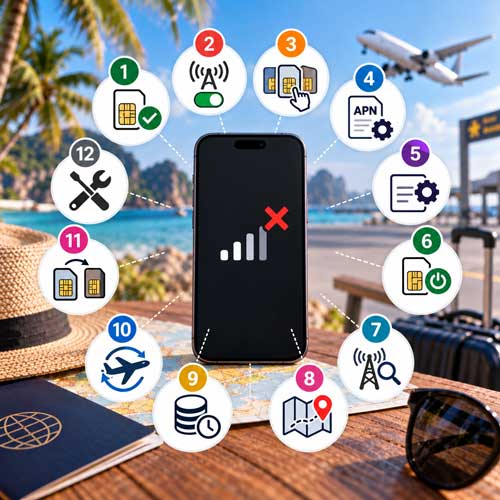
Installation and Internet Connection Are Two Different Things
A successful eSIM installation does not automatically mean that the phone is already configured to use that eSIM for mobile internet.
Your phone can store multiple SIM or eSIM profiles and may continue using another line for mobile data. This is one of the most common sources of confusion when travellers install a new eSIM before departure.
Problem 1 – The New eSIM Is Not Selected for Mobile Data
One of the most common problems is extremely simple: the traveller installs the new eSIM correctly, but the phone continues using the original SIM card for mobile data.
The travel eSIM can appear in the phone settings and may even show network information, but this does not necessarily mean it is the SIM currently responsible for mobile internet.
Why This Happens
Modern smartphones are designed to manage multiple SIMs. Installing another eSIM does not always automatically replace the SIM previously selected for mobile data.
This is useful because you may want to keep your normal telephone number active for calls or SMS while using the travel eSIM only for internet access.
Problem 2 – Data Roaming Is Disabled
The eSIM is installed and selected for mobile data, but there is still no internet. The next setting to check is Data Roaming.
Many international travel eSIM products connect through roaming agreements with local mobile networks. For these products, data roaming may need to be enabled on the travel eSIM.
Why Roaming Can Be Required
A travel eSIM does not necessarily belong to the mobile operator whose radio network you see on your screen. The eSIM provider may have an agreement that allows the SIM to use one or more partner networks in your destination.
The phone can therefore treat the connection as roaming even though roaming is exactly how the travel product is designed to operate.
Problem 3 – The Phone Is Using the Wrong eSIM
Frequent travellers can accumulate several eSIM profiles. You may have an old eSIM from Thailand, Turkey, the United States, Europe or another previous journey still stored on your phone.
When several profiles have similar names such as Travel, Secondary, Business or Mobile Data, it is surprisingly easy to select the wrong one.
Give Your eSIMs Clear Names
Renaming travel eSIMs can prevent future mistakes.
Instead of keeping generic names such as Secondary or Travel, use names such as:
Thailand 2026
USA Travel
Japan eSIM
Europe Trip
Maldives 2026
This becomes especially useful for travellers who regularly use different regional and country-specific eSIM packages.
Problem 4 – The Required APN Has Not Been Entered
Some eSIM packages configure the APN automatically. Others require the traveller to enter a specific APN manually.
If your eSIM instructions explicitly provide an APN, do not skip this step. The eSIM may successfully register on a mobile network while mobile internet still fails because the required access point is missing or incorrect.
What Is an APN?
APN stands for Access Point Name. It is part of the configuration the phone uses when establishing a mobile data connection through the operator's network.
For most travellers, there is no need to understand the technical details. The important rule is simple: if your eSIM provider gives you an APN, enter it exactly as supplied.
Do Not Change the APN If No Manual APN Is Required
Not every travel eSIM needs manual APN configuration. If the provider does not instruct you to change the APN, unnecessary changes can create a new problem instead of solving the original one.
Always follow the instructions for the specific eSIM package you purchased.
Problem 5 – APN Type Is Incorrect on Android
On some Android phones and mobile configurations, the APN screen contains an additional field called APN type or a similar name.
If the eSIM provider requires a specific value in this field, an incorrect value, missing component or typing mistake can prevent mobile data from working correctly.
Common Android APN Mistakes
Typical mistakes include:
• typing the APN incorrectly
• changing uppercase or lowercase characters unnecessarily
• inserting spaces
• using the wrong punctuation or separator in APN type
• entering a value into the wrong field
• creating a new APN but forgetting to select it
• saving the APN incorrectly
After creating or editing an APN, confirm that the intended APN is actually selected.
Problem 6 – The eSIM Line Is Switched Off
An eSIM can remain installed on the phone while the line itself is disabled.
This often happens when travellers switch off an old travel eSIM after returning home and later reuse the phone for another trip. It can also happen accidentally while changing Dual SIM settings.
Problem 7 – The Phone Has Connected to the Wrong Network
Travel eSIMs may be authorised to use one or several partner mobile networks in a destination. Automatic network selection usually works, but occasionally the phone may have difficulty registering correctly or may attempt to connect to a network that is not available for the particular package.
Manual Network Selection
When manual network selection is necessary, the phone searches for mobile networks currently visible in the area.
Select only a network supported by your eSIM package. A network appearing in the list does not automatically mean your eSIM has permission to use it.
If one supported network does not register, try another supported partner where the package allows it.
Problem 8 – You Are Outside the eSIM Coverage Area
A country-specific travel eSIM may work only in its supported destination. A regional eSIM may cover several countries, while a global eSIM may support a much larger list.
Installing an eSIM does not expand its geographic coverage.
Installing an eSIM Before Departure
Many travellers install their eSIM at home before travelling. Depending on the product, the eSIM may not connect to a supported network until you arrive in the destination.
This does not necessarily indicate a problem. Installation, activation and first network connection are separate events, and their exact relationship depends on the eSIM package.
Problem 9 – The Package Has Not Started, Has Expired or Has No Data Left
Correct phone settings cannot provide internet if the underlying package is not currently usable.
Possible reasons include:
• the package has not activated yet
• the validity period has expired
• the available data allowance has been consumed
• activation requirements have not been completed
• the package was intended for a different travel period
Problem 10 – The Phone Has Not Registered Correctly After Arrival
Sometimes all important settings appear correct, but the phone has not completed a clean network registration after landing or crossing a border.
The device may still be holding information from the previous network or may need to search again for available partner networks.
Why Airplane Mode Can Help
Airplane Mode temporarily disconnects the phone from cellular networks. When cellular connectivity is restored, the device performs a fresh search and attempts to register again.
This simple step can solve temporary network-registration problems after flights, border crossings or network changes.
Problem 11 – Dual SIM Mobile Data Settings Are Causing Confusion
With Dual SIM or multiple eSIM configurations, one line can be used for calls while another is used for mobile data.
This is extremely useful for travel, but it also creates opportunities for incorrect configuration. Your home SIM may remain active for your telephone number while the travel eSIM should be responsible for internet access.
Be Careful with Automatic Mobile Data Switching
Some smartphones include a feature that allows mobile data to switch between SIMs under certain circumstances.
This can be convenient at home but may be undesirable abroad if it causes the phone to use your home SIM for data when the travel eSIM has a temporary connection problem.
Review mobile data switching settings before travelling if avoiding home-network roaming charges is important.
Problem 12 – Everything Looks Correct but There Is Still No Internet
If the correct eSIM is enabled and selected for data, roaming is configured correctly, the APN is correct where required, the package is valid and the phone is connected to a supported network, the problem requires more systematic troubleshooting.
Check Whether You Have Signal
Look at the mobile signal indicator. If there is no signal at all, the first issue is network registration rather than an individual app or website.
Check that the eSIM is enabled and then review automatic or supported manual network selection.
Signal but No 4G, LTE or 5G Data
If the phone shows signal bars but mobile data does not work, focus on the data configuration.
Check the selected mobile data SIM, data roaming, APN where required, package status and supported network.
Signal bars alone do not prove that a working mobile data session has been established.
4G or 5G Appears but Websites Do Not Load
If the phone displays LTE, 4G or 5G but internet services still fail, toggle Airplane Mode, verify the mobile data line and APN, and test more than one website or app.
This helps distinguish a general mobile data problem from a temporary problem affecting one application or online service.
Do Not Assume 5G Is Required
A working travel eSIM does not need to display 5G to provide internet. Depending on destination, location, network agreement, device and coverage, the phone may connect using 4G/LTE or another supported technology.
The first objective in troubleshooting should be a working data connection, not forcing a particular network generation.
iPhone – Check Which eSIM Is Used for Mobile Data
On iPhone, open Settings → Cellular / Mobile Service / Mobile Data. The exact wording can vary by language and software version.
Find the mobile data selection and make sure your travel eSIM is selected.
If several SIMs appear, identify the travel eSIM carefully before changing the setting.
iPhone – Check Data Roaming
Open Settings → Cellular / Mobile Service → select the travel eSIM and locate the Data Roaming option.
If your travel eSIM requires roaming, enable it for that travel line.
Do not confuse the travel eSIM settings with those of your home SIM.
iPhone – Check Network Selection
Open the settings for the travel line and find Network Selection where available.
Automatic selection should normally be the first choice. If your provider specifically lists supported partner networks and automatic registration fails, disable automatic selection temporarily and try an authorised network manually.
iPhone – Check APN Only When Required
If your eSIM instructions provide a manual APN and your iPhone allows the relevant settings to be edited, enter the APN exactly as supplied.
Do not replace automatically configured APN information with random settings found online. APN editing availability can depend on the carrier configuration.
Android – Check the Preferred SIM for Mobile Data
On Android, open Settings and find the SIM manager, SIM cards or mobile network section. The exact menu differs between Samsung, Xiaomi, Google Pixel and other manufacturers.
Find the setting that controls mobile data and select the travel eSIM.
Android – Enable Data Roaming
Select the travel eSIM in the mobile network settings and check the Data Roaming option.
Enable roaming when required by the travel eSIM. If several SIMs are installed, verify that you are changing the setting for the correct eSIM.
Android – Check the APN
Open the mobile network settings for the travel eSIM and locate Access Point Names or APN.
If your provider supplied manual settings, compare every required field with the instructions. Save the configuration and make sure the intended APN is selected.
Android – APN Type Deserves Special Attention
The APN type field is a frequent source of configuration mistakes on Android devices.
If your provider specifies an APN type, copy it exactly. Do not add spaces or substitute punctuation. Do not assume settings from another SIM or another country will work.
After saving the APN, confirm that the new profile remains selected.
Samsung eSIM Troubleshooting
On Samsung Galaxy devices, settings are generally found under areas such as Settings → Connections → SIM manager and Mobile networks.
Check that the travel eSIM is enabled, selected for mobile data and configured for roaming where required. APN settings are normally available within the mobile network settings.
Menu names can differ depending on the Galaxy model, Android version and One UI version.
Xiaomi and Redmi eSIM Troubleshooting
On compatible Xiaomi and Redmi devices, SIM and mobile network settings can vary significantly between MIUI, HyperOS, device model and region.
Check the active SIM for mobile data, roaming settings, network selection and APN. If manual APN configuration is required, save the profile and confirm that it is selected.
Google Pixel eSIM Troubleshooting
On Google Pixel devices, mobile network and SIM settings can be managed from the Network & Internet area of Android settings.
Select the travel eSIM and verify mobile data, roaming and network settings. If manual APN settings were provided, enter them exactly as instructed.
The eSIM Works but Internet Is Slow
A slow connection is different from a completely non-working eSIM.
Mobile speed can depend on local network congestion, signal quality, indoor coverage, radio technology, the partner network, device capabilities and the conditions of the eSIM package.
Try moving to another location and compare performance before changing configuration that is otherwise working.
Indoor Coverage Can Be Different
Hotels, airports, underground stations, reinforced concrete buildings and remote locations can reduce mobile signal quality.
If the eSIM works outside but performs poorly inside one building, the problem may be local radio coverage rather than an eSIM configuration error.
The eSIM Worked Yesterday but Not Today
If an eSIM previously worked correctly, first check whether the package has expired or the data allowance has been consumed.
Then try Airplane Mode and network re-registration. If you crossed a border, verify that the new country is included in the package.
The eSIM Stopped Working After Crossing a Border
Regional eSIM users may cross several mobile networks during one journey. After entering a new country, allow the phone time to search for a supported network.
If necessary, use Airplane Mode to refresh registration and verify that the new country is included in your package.
The eSIM Does Not Work Immediately After Landing
After landing, switch off Airplane Mode and give the phone time to search for a local network. Network registration is not always instantaneous.
If there is still no connection, confirm the travel eSIM is enabled and selected for mobile data, then check roaming and network selection.
Can I Keep My Normal SIM Active?
In many Dual SIM phones, yes. Your normal SIM can remain active while the travel eSIM is used for mobile data.
However, you should understand the roaming conditions of your home operator. Keeping a SIM active can potentially allow chargeable calls, messages or data depending on the operator and phone configuration.
How to Reduce the Risk of Accidental Home-SIM Data Roaming
Before travelling, verify which SIM is selected for mobile data and review automatic data-switching features.
If you do not need mobile data from your home SIM abroad, configure the phone so that the travel eSIM is the intended data line and review roaming settings on the home line.
Do Not Reset All Network Settings Too Early
A full network-settings reset can affect saved Wi-Fi networks, Bluetooth or cellular configuration depending on the device.
It should not be the first troubleshooting step. Start with the simple checks in this guide before using broader reset functions.
What Information Should You Send to Support?
If the problem remains, useful information can make troubleshooting much faster.
Send:
• your destination country
• phone manufacturer and exact model
• whether the eSIM is enabled
• whether it is selected for mobile data
• whether data roaming is enabled
• the network name shown on the phone
• whether 4G, LTE or 5G appears
• the APN currently configured, if relevant
• a screenshot of the relevant SIM/mobile network settings where appropriate
Do not publicly share sensitive account information, activation credentials or QR codes.
Why is my eSIM installed but there is no internet?
The most common causes include the travel eSIM not being selected for mobile data, data roaming being disabled, an incorrect APN where manual configuration is required, the wrong eSIM being active, network-registration problems or an inactive or expired package.
Does installing an eSIM automatically make it the mobile data SIM?
Not necessarily. On Dual SIM devices, installing an eSIM and selecting it for mobile data can be separate actions. Check which SIM your phone currently uses for mobile internet.
Should data roaming be enabled for a travel eSIM?
Many travel eSIMs require data roaming because they connect through partner networks. Follow the instructions supplied with your specific eSIM and enable roaming on the travel eSIM when required.
Why does my eSIM show signal but no internet?
Signal bars indicate that the phone can see or register with a mobile network, but they do not guarantee a working data session. Check the selected data SIM, roaming, APN where required, package status and supported network.
What APN should I use for my eSIM?
Use only the APN supplied for your specific eSIM package. Some eSIMs configure the APN automatically and require no manual changes. Do not copy an unrelated APN from another provider or country.
Why is the APN type important on Android?
Some Android mobile configurations use the APN type field to determine how an access point is used. If your provider specifies a particular APN type, enter it exactly as instructed. A typing or configuration error can interfere with mobile data.
Should I delete and reinstall an eSIM if it does not work?
Usually this should not be your first troubleshooting step. First check the mobile data SIM, roaming, APN, network selection and package status. Some eSIM activation codes may not be reusable after deletion.
Why does my travel eSIM not work before I arrive?
Some destination-specific eSIMs cannot register on a supported partner network until you reach a covered destination. Installation before departure does not necessarily mean the eSIM should provide service in your home country.
Why did my eSIM stop working after crossing a border?
The new country may not be included in your package, or the phone may need to register with a different partner network. Check package coverage, allow time for network registration and try refreshing the connection with Airplane Mode.
Can multiple installed eSIMs cause problems?
Multiple stored eSIMs are not automatically a problem, but they can create confusion. Make sure the correct travel eSIM is enabled and selected for mobile data. Clear names such as Japan 2026 or USA Travel can help prevent mistakes.
Why does my eSIM work outside but not inside my hotel?
Building materials and indoor radio coverage can weaken mobile signals. If the eSIM works correctly outdoors or in another location, the problem may be local coverage rather than the eSIM configuration.
Do I need 5G for a travel eSIM to work?
No. A travel eSIM can provide mobile internet using other supported network technologies such as 4G/LTE. Available network technology depends on the destination, partner network, coverage, device and package.
What should I do if nothing fixes the eSIM?
If you have checked the correct data SIM, roaming, APN, destination coverage, package status and network registration and have restarted the phone, contact your eSIM provider. Send the phone model, destination, network shown on the phone and relevant settings so support can investigate efficiently.